
Rules
Overview
The Rules feature allows you to set up automated actions for Mobile Originated (MO) messages received into your Webex Interact account.
Whether you need to manage subscriber opt-ins and opt-outs, send automated SMS replies, or forward incoming messages to your team via email, Rules provides a flexible and extensible automation framework.
Note: The Rules feature replaces the legacy "Opt Ins" feature, providing new capabilities such as email forwarding and managing post receipt Opt Out actions.
Creating & Updating Rules
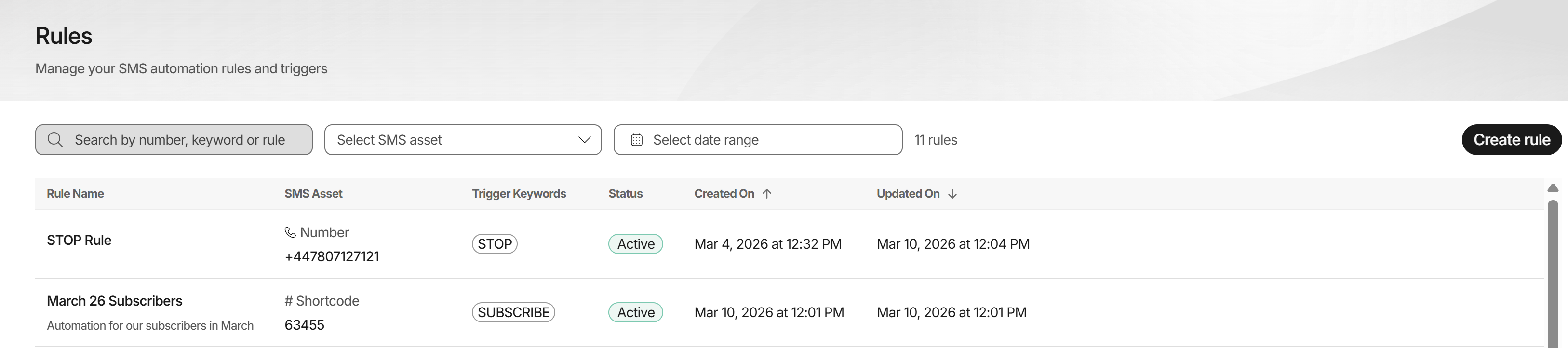
You can access Rules from the left-hand navigation menu.
This will open the Rules listing page, where you can view all of your existing active and inactive rules.
To build a new automation, click the Create rule button in the top right corner. To edit an existing rule, simply click on Manage Rule from the kebab menu item.
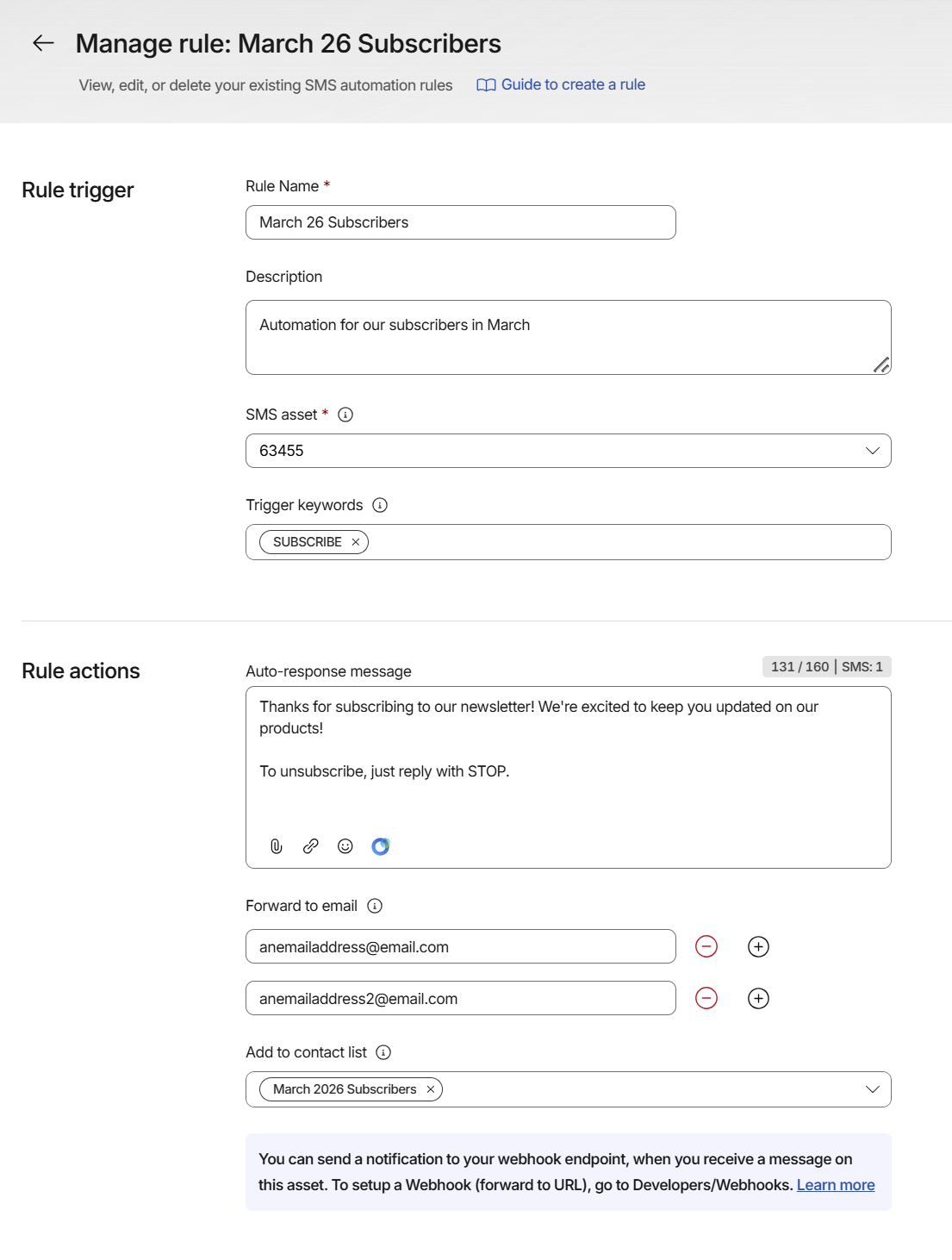
When creating a new Rule, you must provide a Rule Name (Description is optional) and select an SMS Asset. You can apply rules to dedicated long numbers, dedicated shortcodes, or keywords on shared numbers/shortcodes.
Important Note on Updates: When an existing rule is updated, please note that it can take up to five minutes for the changes to become effective across the system.
How a rule is triggered depends on the type of asset selected:
- Dedicated Assets (Long Numbers & Shortcodes): You can assign up to two keywords to the rule. If either of these keywords is present in the incoming MO, the rule is triggered.
- Shared Assets (Keyword on Shared Number/Shortcode): You can add one additional keyword to the rule. Because the message must first be routed to your account via the primary asset keyword (e.g., WIN on 60777), the rule will only trigger if both the asset keyword AND the rule keyword are present in the message.
- Catch-All (No Keywords): You are not required to define a keyword. If left blank, the rule will trigger for all MOs received on that specific asset.
Rule Actions
Once a rule is triggered, Webex Interact can perform the following automated actions:
- Contact List Management (Opt-Ins)
You can configure a rule to automatically add the sender's phone number to one or more Contact Lists.
Opt-Out Override: If the sender's number currently exists on your account's Opt-Out List, this action will automatically remove them from the Opt-Out List before adding them to your nominated Contact List(s).
- Opt-Out Management (non-configurable)
If a Rule is triggered by the industry-standard keywords STOP or UNSUBSCRIBE:
The sender's number will be immediately added to your Opt-Out list.
Exception: Any "Add to Contact List" actions configured within this rule will not be honored. Other actions (like auto-responses or email forwards) will still execute.
- Auto-Response
You can set up an automated SMS reply to acknowledge receipt of the message (e.g., "You have successfully subscribed...").
Note: Auto-responses are chargeable and will be deducted from your wallet balance.
- Email Forwarding
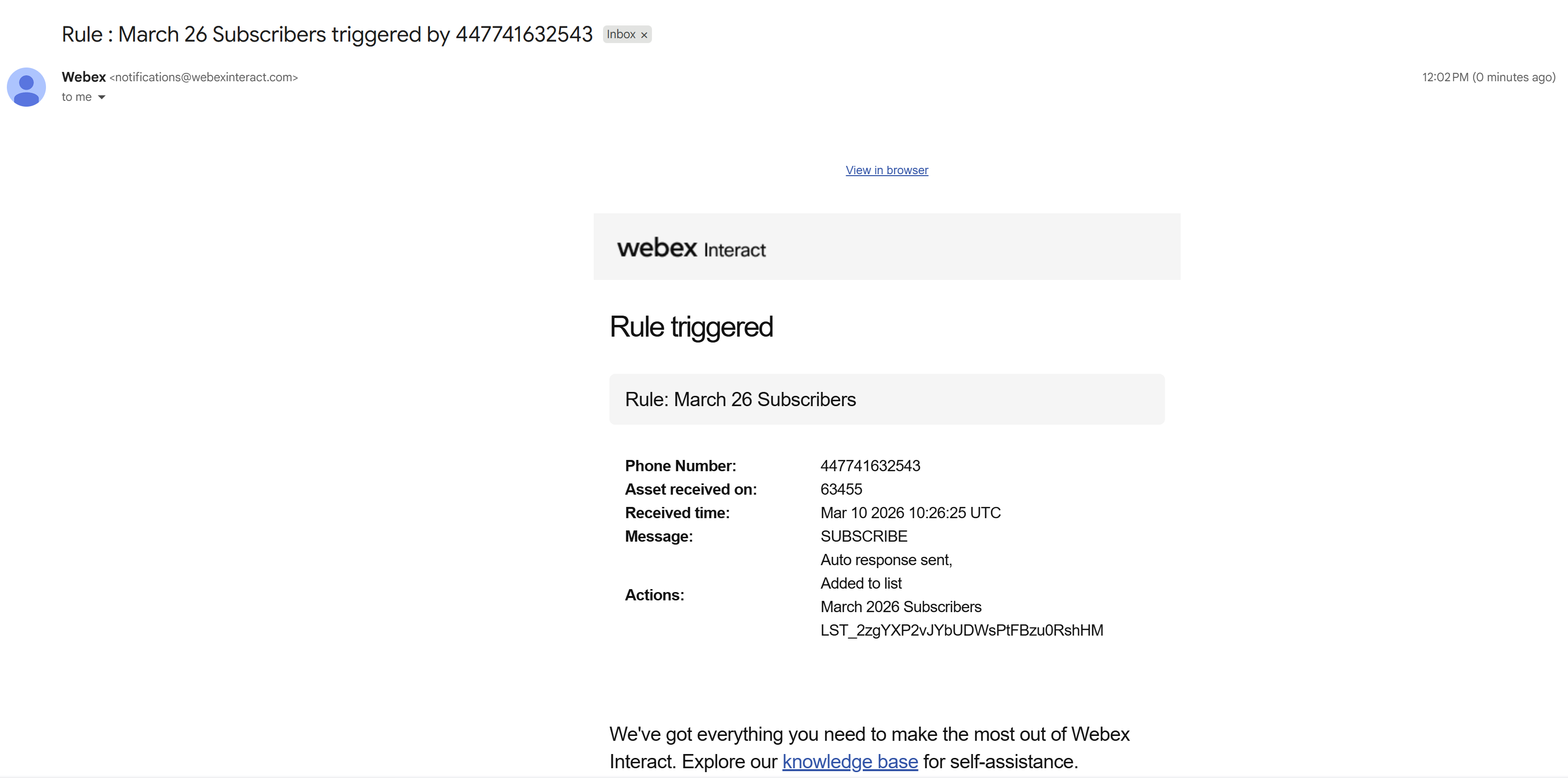
You can forward the incoming MO details to up to 10 email addresses. The forwarded email includes:
- The sender's Phone Number
- The Asset the message was received on
- The Received Time (UTC)
- The Message body
- The Actions taken by the system (e.g., "Auto response sent, Added to list...")
Limitations & Priorities
To prevent conflicting automations, Webex Interact enforces a strict one automation rule per MO policy. The system validates your setup to ensure only one Asset/Keyword combination can exist.
Validation Examples:
- If a Rule is created on dedicated asset +447812345678 having no trigger keywords, no other Rules can be created on +447812345678 having no trigger keywords.
- If a Rule is created on the keyword asset WIN on shared long number +447812345677 having no trigger keywords, no other Rules can be created on WIN on +447812345677 having no trigger keywords.
- If a Rule is created on dedicated asset +447812345678 with two trigger keywords KW1 and KW2, no other Rules can be created on +447812345678 having either KW1 or KW2.
Fallback Behavior: The existing auto-response functionality found on the Manage Number or Manage Keyword pages will continue to exist. However, these will now act as a fallback. If a matching Rule exists, the Rule will take priority and execute instead.
Rule Status & Asset Lifecycle
A Rule's status is directly tied to the status of its associated SMS Asset.
Status Mapping Logic:
Active (Green indicator): The associated SMS Asset status is Active or Awaiting Release.
Inactive (Grey/Red indicator): The associated SMS Asset is in any other status, or the asset has been deleted/removed from your account. Inactive rules will not trigger any workflows, auto-responses, or forwards.
Rule Persistence & Editing:
No Auto-Deletion: If an SMS Asset expires or is removed from your account, the associated Rule is not deleted. It will remain on your Rules listing page marked as Inactive.
Missing Assets in UI: On the Rules listing page, if the asset has been removed, the SMS Asset column will display a placeholder (e.g., "--").
Reactivating a Rule: If you edit an Inactive rule where the asset has been removed, the SMS Asset dropdown will be blank. You can select a new, currently active SMS Asset from the dropdown. Upon saving, the Rule Status will automatically update to Active.
Update Propagation: As a reminder, whenever you save changes to an existing rule (such as reactivating it or changing its actions), it can take up to five minutes for those updates to take effect.
Updated 6 months ago